Monk Mode App: Turn Your iPhone Into a Monk-Mode Device
Focus silences your phone, but it doesn't lock anything. What a monk mode app has to do instead, and a strict deep-work setup you can copy.
A monk mode app keeps your distracting apps closed during the hours you set aside for deep work, and doesn't let you talk your way back in. On iPhone, the one worth using combines Screen Time blocking with schedules, a strict mode you can't switch off halfway, and a pause before every unlock. Below is a checklist for picking one, what iOS already does on its own, and a full setup you can copy.
Monk mode is a stretch of days or weeks where you cut distractions and put your time into a few chosen goals. If you want the full background, read what monk mode is and how it works. This guide is about the phone side.
What a monk mode app needs
When we checked the App Store results for "monk mode" in November 2026, every app in the top ten had fewer than 50 ratings. Ratings won't tell you much here, so judge apps on what they do. A monk mode app should have these six things:
- Blocking that holds. When the time is up, the app should stay closed behind a block screen. A notification you can swipe away is a reminder, not a block.
- Schedules and places. Blocks should start at set times, and ideally when you arrive somewhere, like the library.
- An option you can't turn off. At 10:40 on a Tuesday you will want to "just check one thing". A strict setting that stops you from ending or editing a running block is what makes monk mode stick.
- Friction before unlocking. A short pause (breathing, typing why you're opening the app) gives you a second to change your mind.
- Goals that earn the phone back. The best version ties unlocking to things you actually did that day, such as reading or training.
- Privacy. A blocker sees which apps you use and when. That data should stay on your phone, with no account required.
What iOS can do on its own
Apple gives you two built-in tools: Focus and Screen Time.
Focus modes
A Focus lets you silence all notifications or allow only specific people and apps. You can switch to a different Home Screen page while it's on, and you can have it start automatically "at a set time, location, or while using a certain app," according to Apple Support.
The limit: Focus deals with notifications and Home Screen pages. It has no setting that locks an app. If you swipe to the App Library and tap Instagram, Instagram opens.
Screen Time on iOS 26 and earlier: Downtime and App Limits
Downtime blocks apps and notifications during set hours. During Downtime, "only calls, messages, and apps you choose to allow are available." App Limits set a daily time cap for a category or for single apps.
The catch is in Apple's own guide: "By default, Screen Time limits can be ignored once reached." To make Downtime actually block apps, you need to set a Screen Time passcode and turn on Block at Downtime. Without it, you see a reminder and can keep using the app (Apple Support).
App Limits work the same way. When a limit runs out, an Ignore Limit button lets you add 15 minutes or skip the limit for the rest of the day. The Block at End of Limit toggle that removes this only appears once a Screen Time passcode is set (Tech Lockdown).
Screen Time on iOS 27: Schedules and Time Allowances
iOS 27 reorganised these settings. Screen Time Schedule lets you build time windows for weekdays and weekends, and Time Allowances set how long you can use categories like Entertainment, Games or Social Media. You can turn on Match Screen Time Schedule so allowances follow your windows, and you can keep some apps under Always Allowed (Apple Support).
You can still protect these settings with a Screen Time passcode, set under Passcode & Management (Apple Support). The problem for monk mode is simple: you chose the passcode, so you know it. Some people ask a partner to set it instead.
Native iOS vs a dedicated monk mode app
| What you need | Focus | Screen Time | Lockty |
|---|---|---|---|
| Built into iOS, nothing to install | Yes | Yes | No |
| Silence notifications | Yes | During Downtime | No, it blocks apps instead |
| Keep chosen apps closed | No | Yes, with a passcode and blocking turned on | Yes |
| Start on a schedule | Yes | Yes | Yes |
| Start when you arrive at a place | Yes | No | Yes |
| Start by tapping an NFC tag | No | No | Yes |
| Can't be ended once it starts | No | Only if someone else holds the passcode | Yes, with Strict mode |
| Cap on how many times a day you open an app | No | No | Yes |
| Pause before unlocking | No | No | Yes |
| Unlock only after your goals are met | No | No | Yes |
| History of what you unlocked and why | No | Usage reports | Yes |
If you only want quieter notifications at night, Focus is enough. If you want blocks you can't undo on a bad day, you need either a passcode someone else keeps or a dedicated app.
How to set up monk mode on your phone with Lockty
Lockty is an iPhone and iPad app (iOS 18 or later) built on Apple's Screen Time API. Here is a monk-mode setup you can adapt.
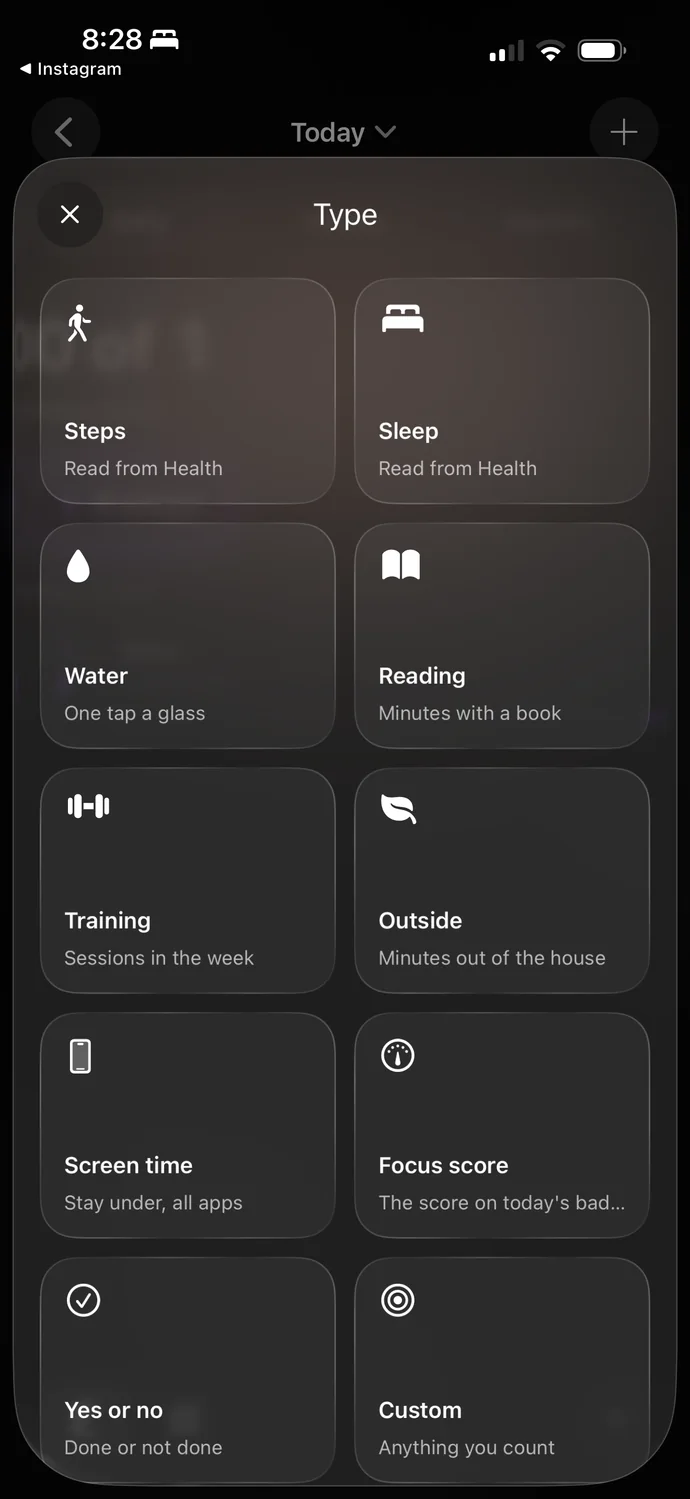
1. Set your goals on the Today screen
Start with what you want your monk-mode days to contain. On the Today screen, tap + and pick a goal type. A simple monk-mode set:
- Reading: 20 minutes a day
- Training: 3 sessions a week
- Steps or Sleep, read from Apple Health, if those matter to you
2. Build a Friction for every unlock
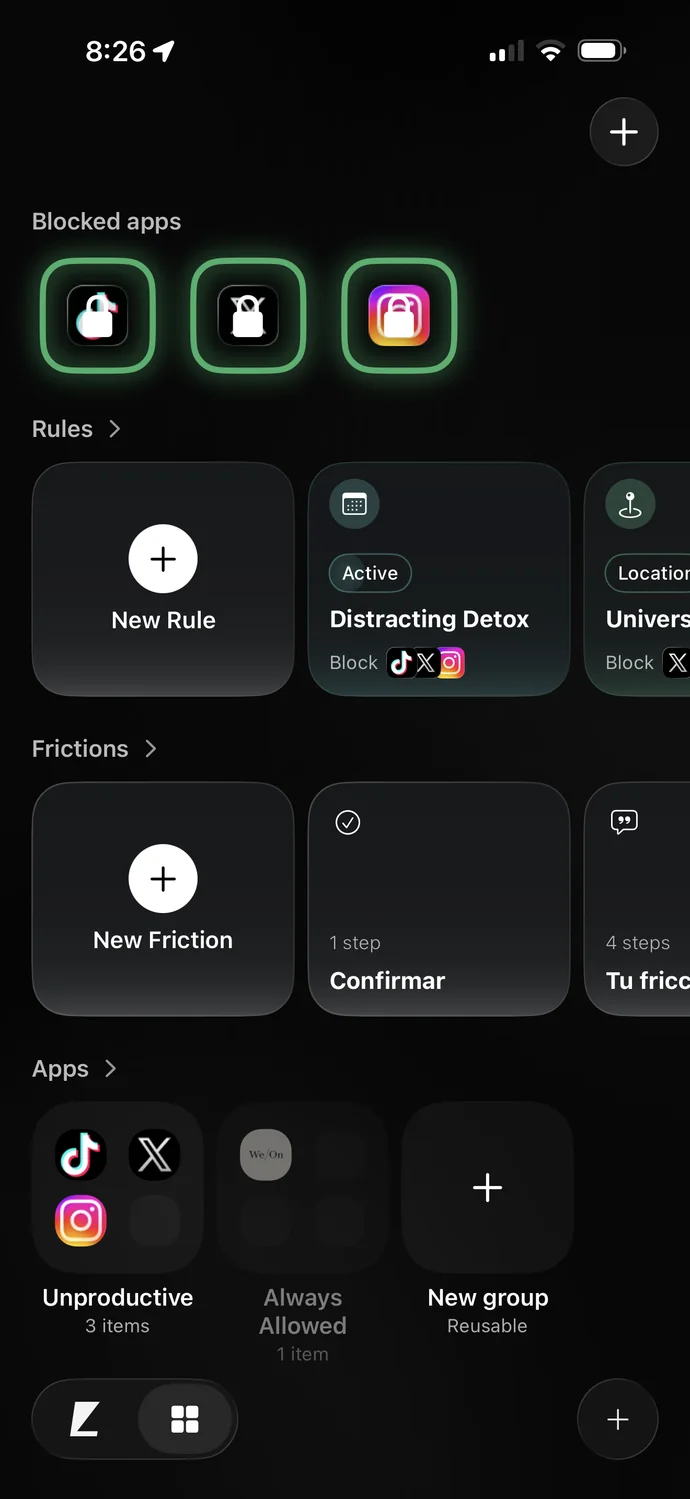
In Lockty, the pause before an unlock is called a Friction. Under Frictions, tap New Friction and add steps. A good monk-mode Friction:
- Breathing for 30 seconds (you can set anywhere from 5 seconds to 3 minutes)
- Write what you're opening it for, so "checking messages" has to be put into words
- Objectives, so the app only opens once your goals are met
With the Objectives step you decide whether that means all your goals, the ones you tick, or whichever are due that day. Copying a phrase and small challenges like Word Search are there too.
3. Create a rule for the apps that pull you away
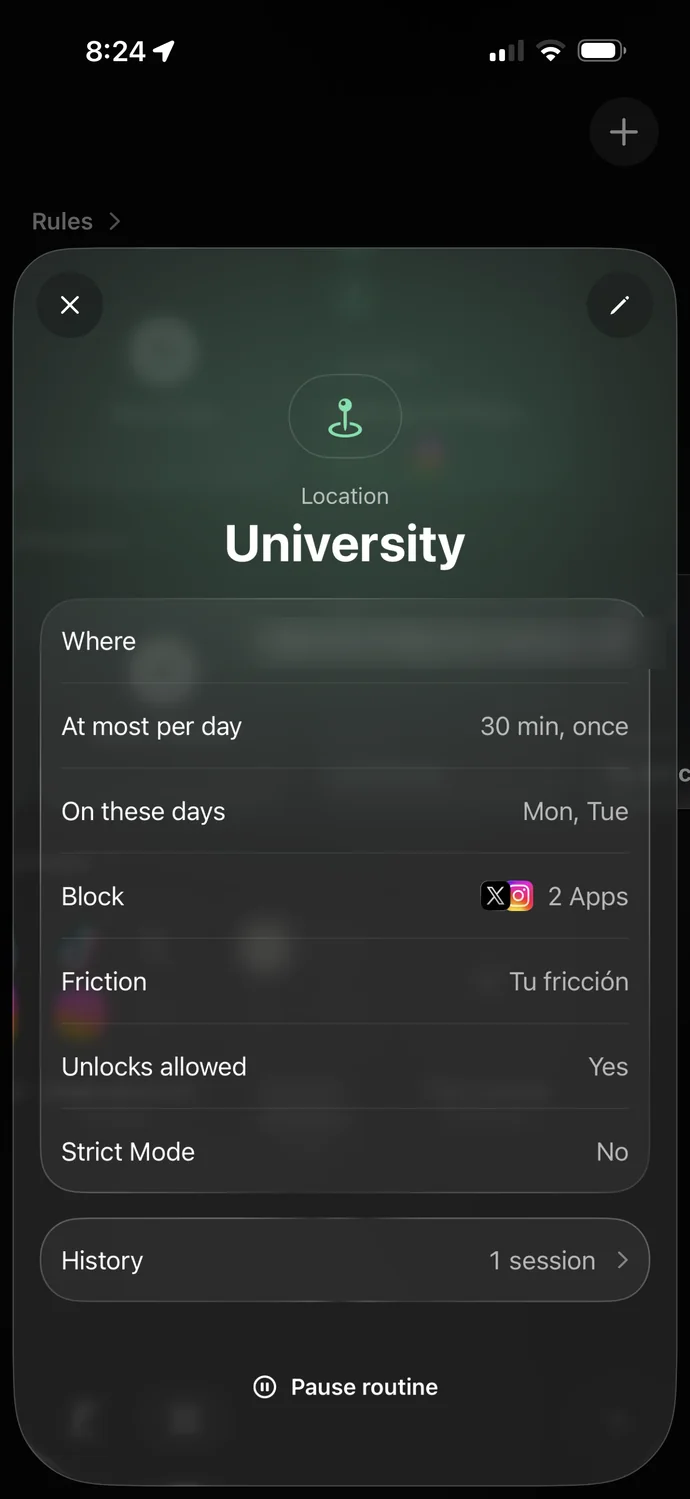
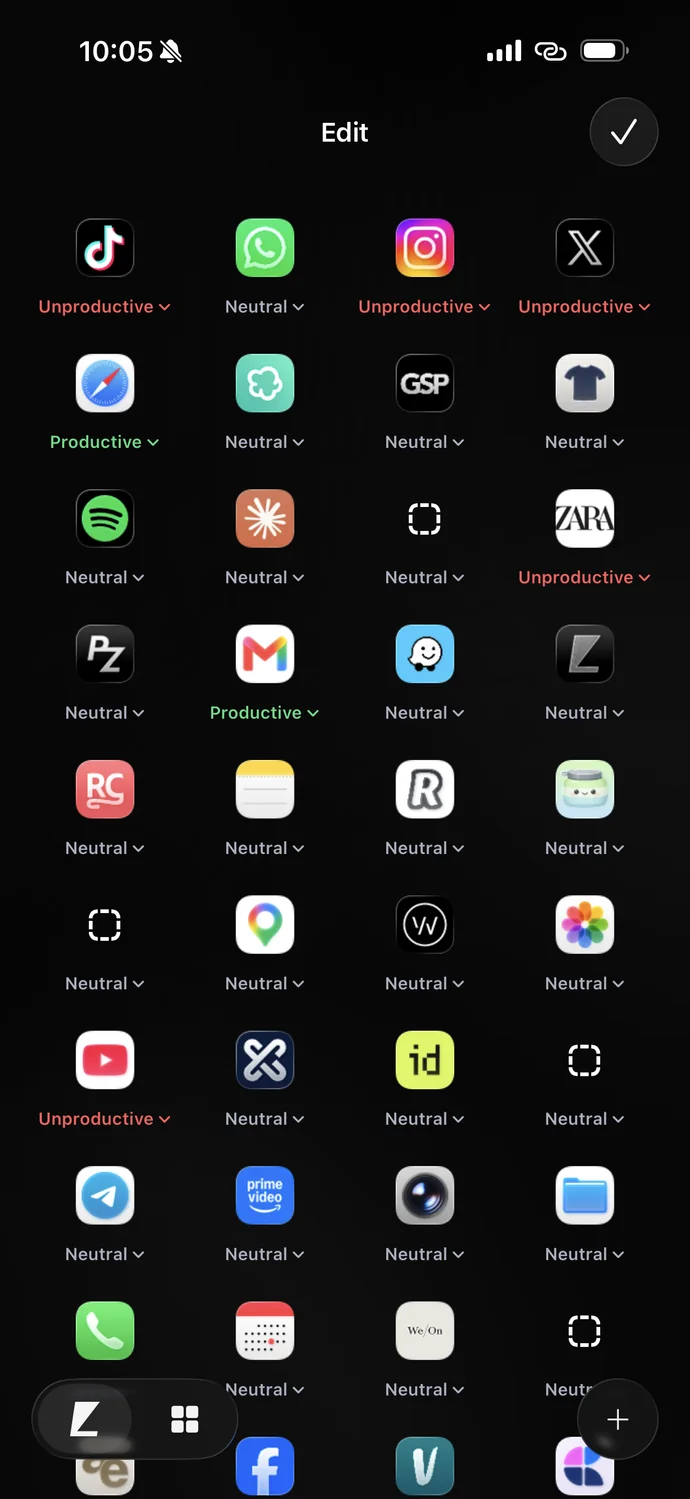
Tap New Rule, pick the apps that eat your time (usually social media, video, news and games), and choose when they lock:
- a daily limit, for example 30 minutes in total
- a cap on how many times a day you open them
- short sessions, so each open stays brief
- a schedule or a place
Then choose the Friction from step 2 for the rule's unlocks, and set Unlocks allowed: none at all, or a few a day with a minimum gap between them. When the time runs out, the app opens behind a Lockty screen instead of your feed.
4. Add a nightly rule
Late evening is where most monk-mode plans break. Create a second rule on a schedule, for example 22:00 to 07:00, that locks social and video apps overnight. If you're also cutting back on cheap stimulation, our guide to a dopamine detox pairs well with this rule.
5. Create a strict "Deep work 09:00–12:00" mode
Modes are routines that start on their own. Create one called Deep work, set it to start on a schedule from 09:00 to 12:00 on weekdays, and choose the apps it blocks.
Turn on Strict mode. Once the mode is running, you can't stop it or edit it until it ends. This is the setting that does the heavy lifting in monk mode, so start with a window you know you can keep.
You can also add tasks to the mode, such as "Outline chapter 3" or "Answer email only after 12:00", so the block has a clear job.
6. Add a mode for a place or an NFC tag
If you work at a library, a coworking space or a café, create another mode that starts when you arrive there. Prefer something physical? Put an NFC tag on your desk and start the mode by tapping it as you sit down.
7. Unlock on purpose, then review
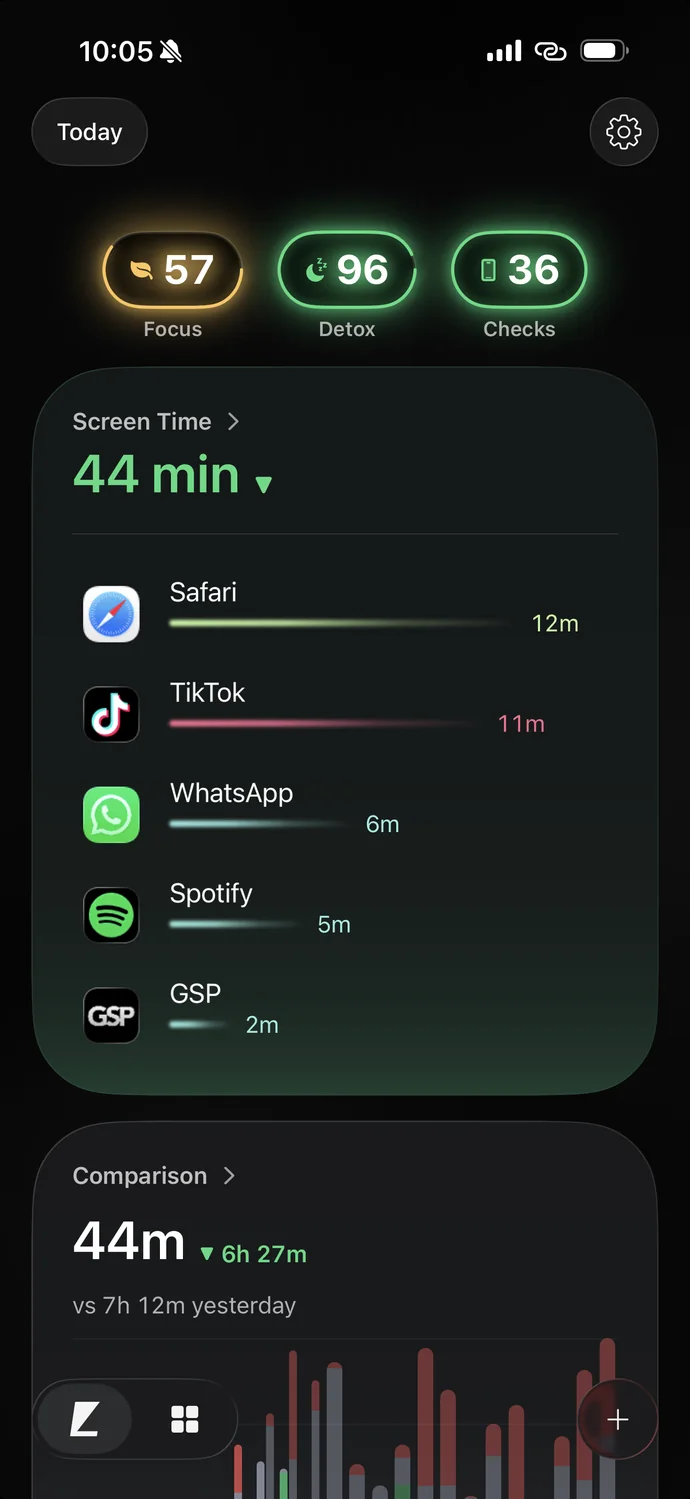
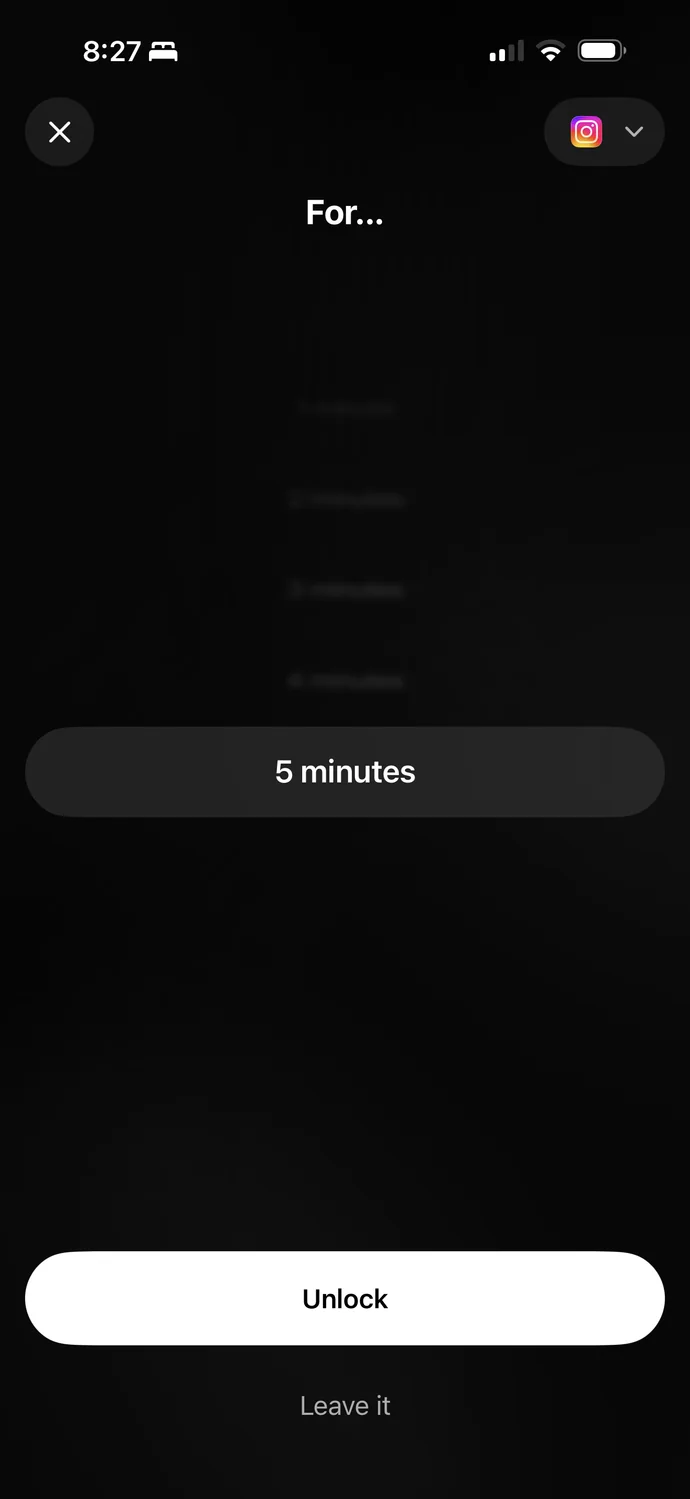
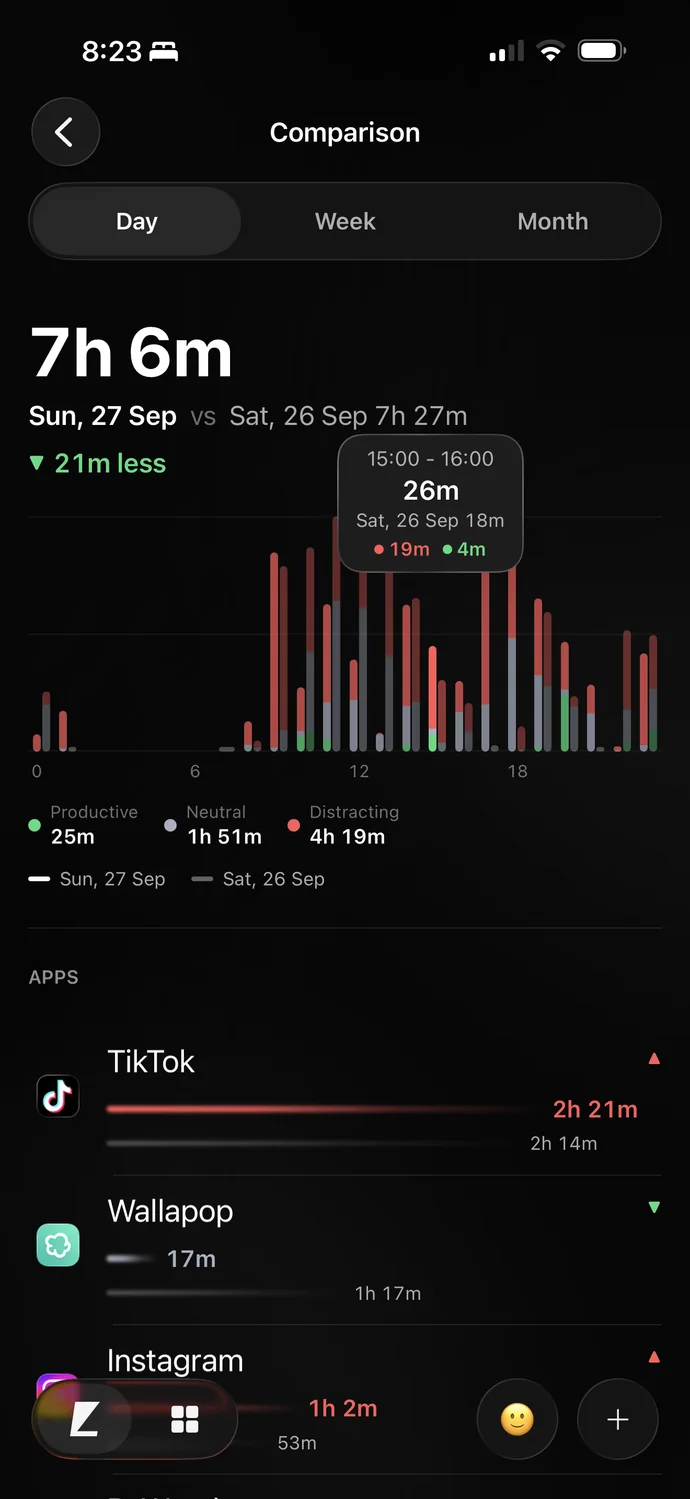
When you do get through a Friction, you choose how many minutes you get. A Live Activity shows the countdown on your Lock Screen. At the end of the week, check the History for each mode to see what you unlocked and the reason you gave. Your Focus, Detox and Checks scores show the trend at a glance.
Want to see how the pieces fit before you start? Lockty's how it works section walks through it.
FAQ
What is the best monk mode app for iPhone?
Look for an app that blocks apps through Apple's Screen Time API, runs on schedules and places, has a strict option you can't cancel, and adds a pause before unlocking. Lockty covers all of these and adds goals that have to be met before an app opens.
Can I do monk mode with just Focus and Screen Time?
Partly. Focus can silence notifications on a schedule, and Screen Time can block apps during Downtime or a Screen Time Schedule. But Apple notes that limits can be ignored by default, and blocking only holds with a Screen Time passcode you set yourself. That works best if someone else keeps the passcode.
Does a monk mode app see my personal data?
It depends on the app, so check its privacy details. Lockty uses Apple's Screen Time API, keeps your usage data on your iPhone and doesn't ask you to create an account. If you export your data, the file is encrypted.
Sources
- Set up a Focus on iPhone, Apple Support, iPhone User Guide (iOS 27), 2026
- Set schedules with Screen Time on iPhone, Apple Support, iPhone User Guide (iOS 26), 2026
- Set Screen Time Schedules and Time Allowances in Screen Time on iPhone, Apple Support, iPhone User Guide (iOS 27), 2026
- Create, change, or remove a Screen Time passcode on iPhone, Apple Support, iPhone User Guide (iOS 27), 2026
- How to Fix the "Ignore Limit" Screen Time Bypass for App Limits, Tech Lockdown, 2026