Unlock Apps With Steps on iPhone: What Works and How to Set It Up
Instagram stays locked until you've hit your step goal for the day. iOS can't do that on its own. Here's what can, and how to set it up.
To unlock apps with steps, you need an app that reads your step count from Apple Health and keeps chosen apps (Instagram, TikTok, YouTube) behind a lock screen until you reach a target. iOS can't do this on its own: Screen Time limits are based on time and schedules, not on activity. Lockty does it with steps and with other daily goals, such as sleep, reading or training.
This guide covers why the idea works, how far the built-in tools get you, how to set it up in Lockty, and how the main approaches compare.
What "unlock apps with steps" means
The setup is simple. You pick the apps that eat your day. They stay locked each morning. Once Apple Health shows you've walked your target (say 8,000 steps), they open again. You'll also see it called "walk to unlock apps", or an app that blocks apps until you get your steps in.
Most "walk to unlock" apps on the App Store follow this pattern. WalkLock's App Store page, for example, says Apple Health confirms your real steps and the apps unlock once you hit your goal. Steps Unlock describes apps staying locked until you complete your step goal.
The order matters. You aren't promising yourself a walk later. The scroll comes after the walk, so the walk happens first.
Why tying apps to steps works
Behavioral economists have a name for this: a commitment device. It's a choice you make now that makes the tempting option harder later, when your willpower is lower. A 2010 review in the Annual Review of Economics by Gharad Bryan, Dean Karlan and Scott Nelson looks at the evidence on whether people want these devices and whether they work. It also separates "hard" commitments, which carry real penalties, from "soft" ones, and explains how soft commitments can still help.
A step lock is a soft commitment. Nothing bad happens if you skip the walk. You just can't reach the feed yet. That small barrier does two things:
- It adds friction at the right moment. Reaching for your phone on autopilot now runs into a reminder of what you said you'd do first.
- It turns a vague intention into a rule. "I should walk more" becomes "social apps open after 8,000 steps". That's a concrete if-then plan you set once and don't renegotiate every morning.
It won't make you walk if you've decided not to. It does remove the daily debate.
Can iPhone do this natively?
Partly. Here is what Apple's own tools offer.
Screen Time
Screen Time lets you set time allowances for categories such as social media and games, and schedules for when apps are available, according to Apple's iPhone User Guide. Every limit is based on minutes or on the clock. There's no setting that links a limit to Apple Health, steps or any other goal. You can say "one hour of Instagram a day", but not "Instagram after my walk".
Shortcuts automations
The Shortcuts app gets closer. Apple's guide says personal automations run on events "such as time of day, arrival at a location, or the opening of an app", and you can set one to run without asking each time. Shortcuts also has a Find Health Samples action that can read Health data such as steps.
So a workaround is possible:
- In Shortcuts, create a personal automation with the App trigger and choose the app you want to gate.
- Add Find Health Samples to read today's steps.
- Add an If step: when steps are under your target, show a notification or send you to another app.
- Set the automation to run without asking.
It works as a nudge, but it has limits. Apple doesn't document any Shortcuts action that keeps an app closed until a condition is met, so the trick usually amounts to a message or a jump to another screen, which you can back out of. You need one automation per app, and Apple notes that automations are specific to each device. Building the step check also takes some fiddling with filters and dates.
If you want a real lock, you need an app built on Apple's Screen Time API.
How to unlock apps with steps in Lockty
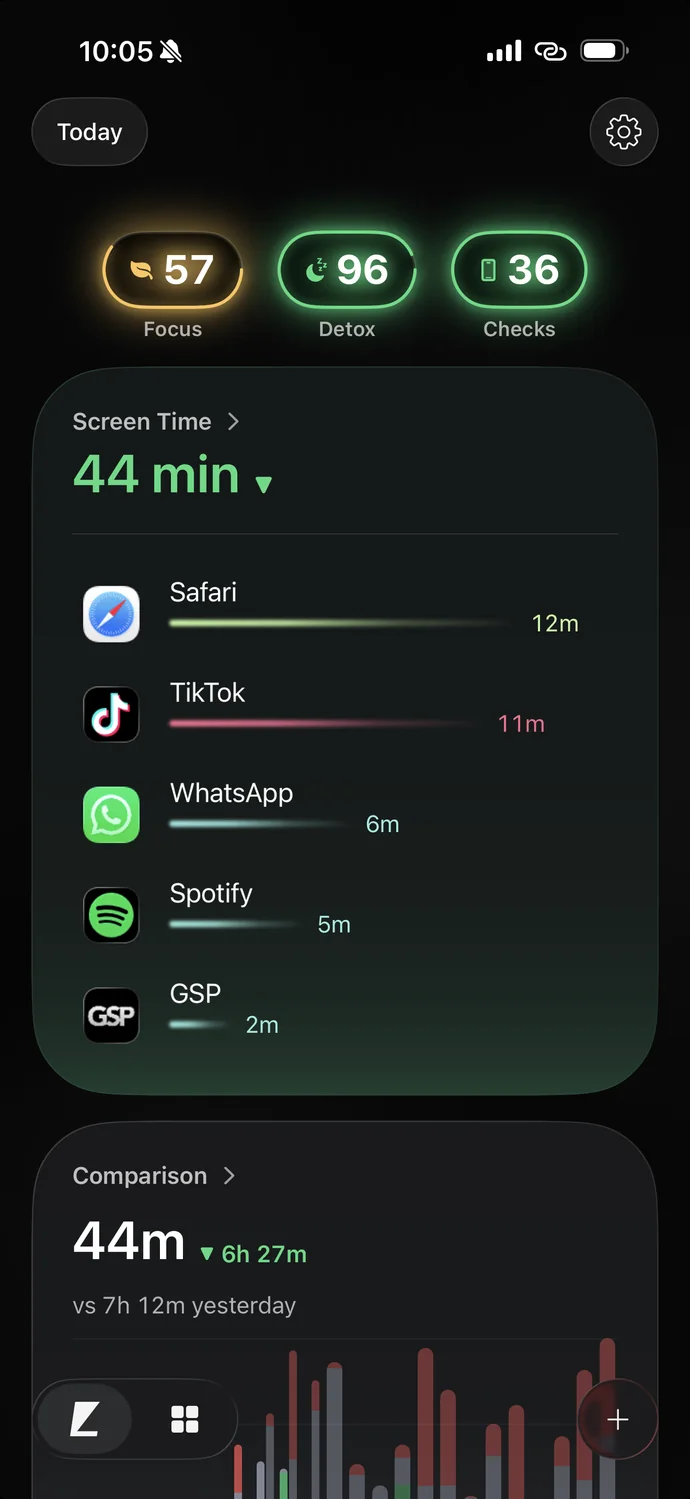
Lockty is an iPhone and iPad app (iOS 18 or later) that uses Apple's Screen Time API. Your usage data stays on your iPhone and there's no account to create. Here's the basic setup.
- Install Lockty from the App Store and allow Screen Time access. iOS asks you to approve this the first time.
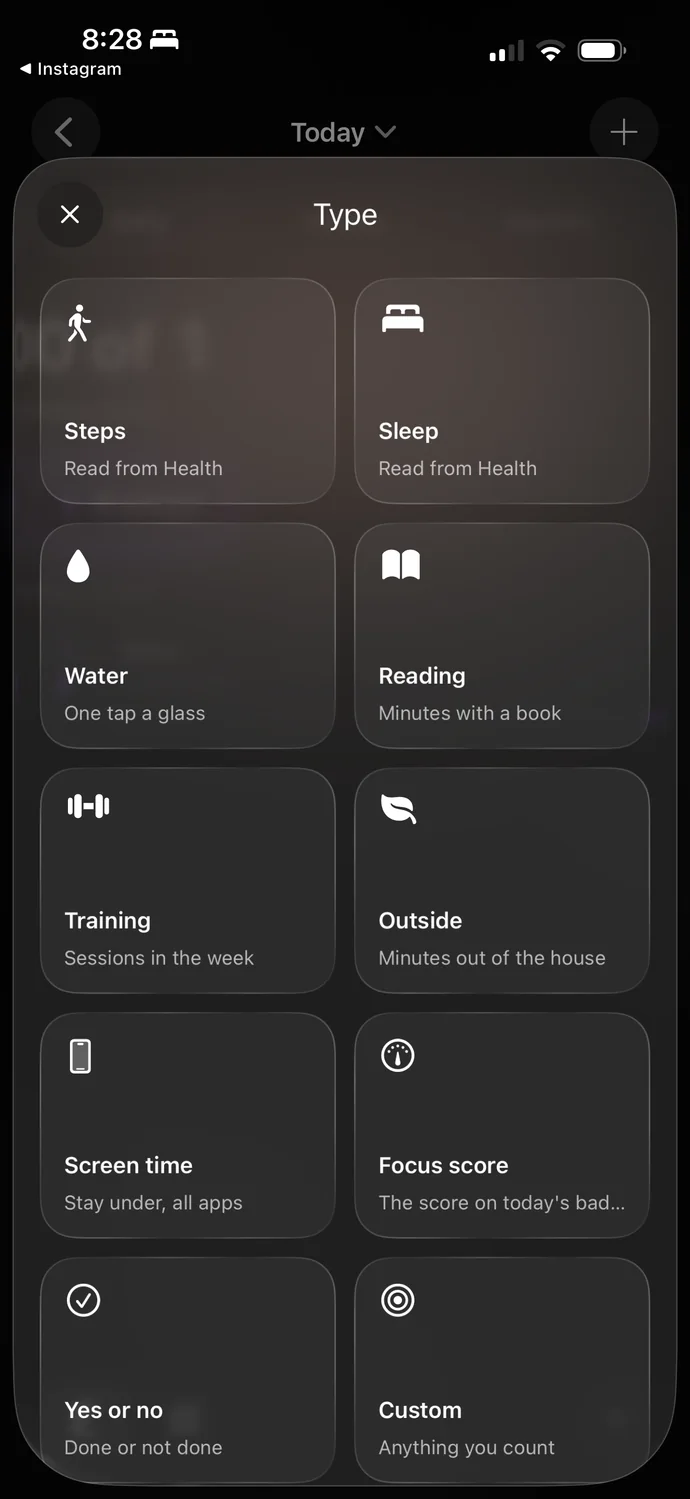
- Set your Steps objective. On the Today screen, tap + and choose Steps. Steps are read from Apple Health, so allow Health access when asked. The default target is 8,000 steps. Change it to whatever suits your routine.
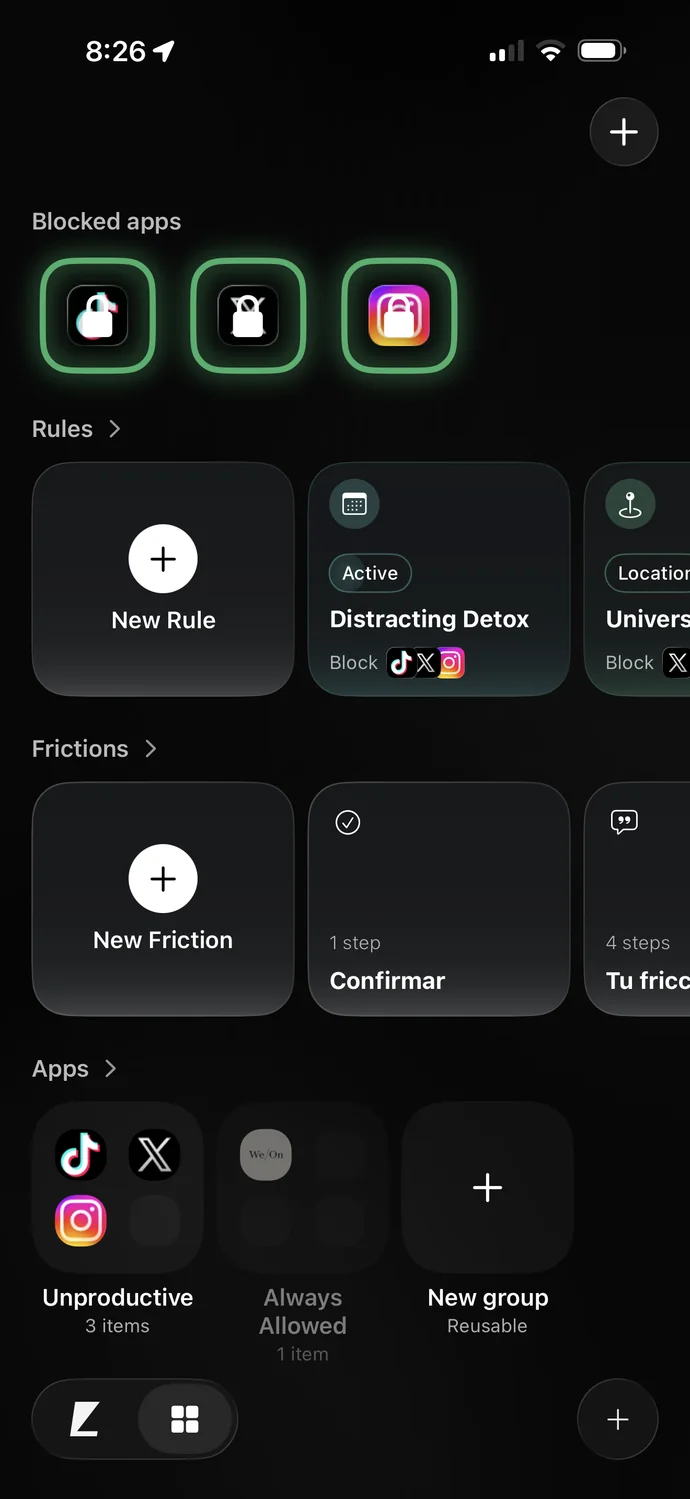
- Create a friction with the Objectives step. Lockty calls the pauses that come before an unlock frictions. Under Frictions, tap New Friction and add the Objectives step.
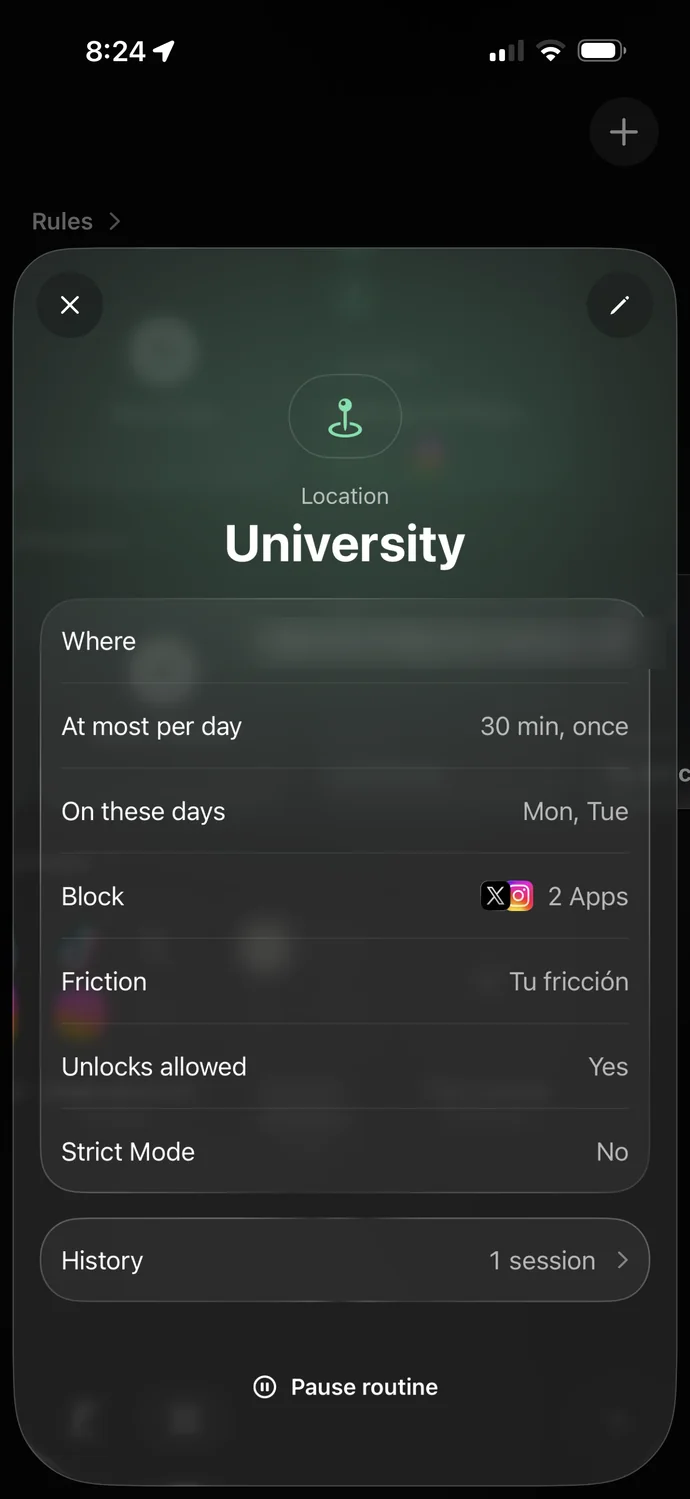
- Add a rule and attach the friction. Tap New Rule, pick the apps that pull you in (social media, video, games) and choose when they lock: a morning schedule works well for a step lock, or a daily limit. Then pick your new friction for the rule's unlocks. When the rule applies, the app opens behind a Lockty screen instead of your feed.
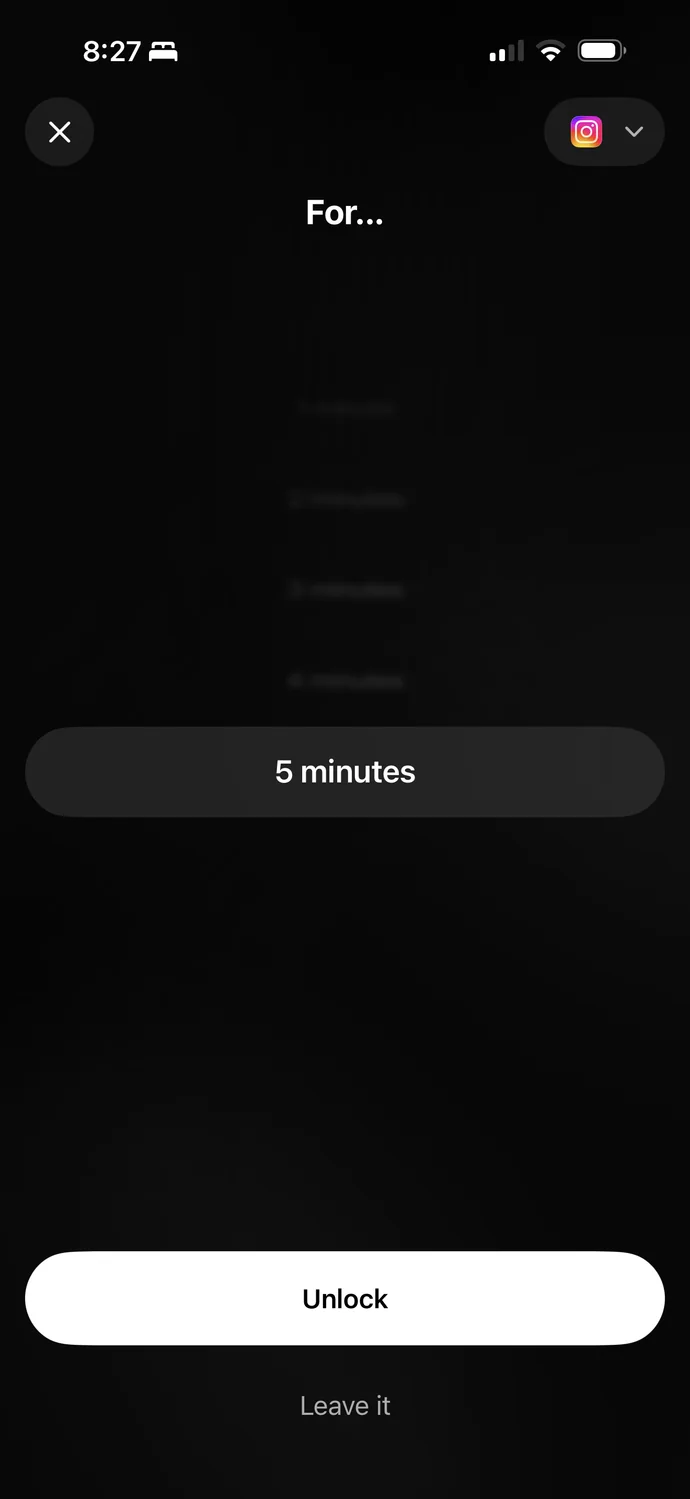
- Unlock once you've walked. When you open a blocked app, the Objectives step checks your steps. Under target, it stays locked. Over it, you choose how many minutes to unlock for, and a Live Activity shows the countdown on your Lock Screen.
You can stack other steps in the same friction if you want more of a pause. Options include a breathing pause (5 seconds to 3 minutes), writing down what you're opening the app for, or a short challenge like Sort the Numbers or Word Search.
Beyond steps: other goals that can unlock your apps
Steps are a good start, but some days you'd rather earn your screen time another way. Lockty calls these Objectives, and the Objectives step can check any of them:
- Steps and Sleep, read from Apple Health (default targets: 8,000 steps and 8 hours)
- Water, one tap per glass
- Reading, in minutes
- Training, in sessions per week
- Outside, in minutes spent outdoors
- Screen time, staying under a set amount
- Focus score, Yes/no and Custom goals for anything else
When you add the Objectives step to a friction, you decide which goals count. The app can open once all your goals are met, only the ones you tick, or whichever are due that day.
The last option suits training goals. If you train three times a week, you don't want Instagram locked on rest days. With "whichever are due that day", Lockty only checks the goals that apply today.
If you're still working out which goals to set, our sister blog has a guide on how to set daily goals. You can also see how goals unlock apps on the Lockty homepage.
Making it harder to cheat
A step lock only helps if you leave it on. Lockty has a few ways to make that easier:
- Modes start on a schedule, when you arrive at a place, or when you tap an NFC tag. A "Morning" mode can switch the lock on as soon as your day starts.
- Strict mode stops a running mode from being stopped or edited, so you can't switch it off at 8:05 a.m.
- Widgets for Objectives and Scores show how close you are without opening the app.
Comparing the options
| Approach | Ties apps to steps? | Other goals? | Actually locks the app? | Setup effort |
|---|---|---|---|---|
| Screen Time (built in) | No | No | Yes, by time or schedule | Low |
| Shortcuts automation | Partly, via Find Health Samples | Only if you build it | No documented way; it can redirect or notify | High, one automation per app |
| Single-purpose step apps (e.g. WalkLock, Steps Unlock) | Yes | Their App Store pages describe step goals only | Yes, per their App Store pages | Low |
| Lockty | Yes, from Apple Health | Yes: sleep, water, reading, training, outside and more | Yes, behind a Lockty screen | Low to medium, depending on rules |
Single-purpose step apps make sense if steps are the only habit you care about. If your days vary, or you want sleep or reading to count too, a goal-based setup saves you running several apps. For a wider look at blockers in general, see this comparison of app blockers for iPhone.
FAQ
Can I unlock apps with steps without a third-party app?
Not fully. Screen Time limits are based on time and schedules, with no link to Apple Health. A Shortcuts automation can read your steps when you open an app and show a reminder, but Apple doesn't document a way for it to keep the app closed.
Does Lockty need an Apple Watch to count steps?
No. Lockty reads steps from Apple Health, so it counts the steps Health has recorded, whether they come from your iPhone or a paired watch.
What if I can't walk on a given day?
You can lock apps behind other goals instead, such as reading, water or time outside. Or use "whichever are due that day" so only today's goals are checked. You can also lower your step target for a while.
Is Lockty a parental control app?
No. Lockty is built for adults managing their own phone. It uses the Screen Time API on your own device, and there's no account.
Where is my step and usage data stored?
Usage data stays on your iPhone. There's no account, and if you export your data, the export is encrypted.
Sources
- Commitment Devices, Annual Review of Economics, vol. 2 (Bryan, Karlan and Nelson), Annual Reviews, 2010
- Intro to shortcuts with automations on iPhone or iPad, Apple Support, 2026
- Add automations to Shortcuts on iPhone or iPad, Apple Support, 2026
- Intro to Find and Filter actions in Shortcuts on iPhone and iPad, Apple Support, 2026
- Set up Screen Time for yourself on iPhone, Apple Support, 2026
- WalkLock: Walk to Unlock Apps, App Store listing, Apple, 2026
- Steps Unlock: Focus App Block, App Store listing, Apple, 2026